How to Install Apache on Ubuntu 14.04
This is first tutorial of this series , In this series I will showing you how to setup Apache PHP and MySQL Database on ubuntu 14.04 trusty step by step . this is just beginner level series .

Introduction
The Apache HTTP Server, Apache is developed and maintained by an open community of developers under the auspices of the Apache Software Foundation. Most commonly used on a Unix-like system . is most used web server and has many features like virtual-hosting and ssl support etc.
Installation
sudo apt-get update
sudo apt-get install apache2
Configuration File Info
| Config File |
|---|
| /etc/apache2/apache2.conf |
| /etc/apache2/conf-available |
| /etc/apache2/conf-enabled |
| /etc/apache2/mods-available |
| /etc/apache2/mods-enabled |
| /etc/apache2/sites-available |
| /etc/apache2/sites-enabled |
| /etc/apache2/ports.conf |
| /etc/apache2/envvars |
| /etc/apache2/magic |
Configuration
lets create example.com sample site
lets remove default availble site and copy default avaible site info to our new example.com site
sudo rm -rf /etc/apache2/sites-enabled/000-default.conf
sudo cp /etc/apache2/sites-available/000-default.conf  /etc/apache2/sites-available/example.com
sudo
open /etc/apache2/sites-enabled/example.com with your favorite editor , I am going to use nano
sudo nano /etc/apache2/sites-available/example.com
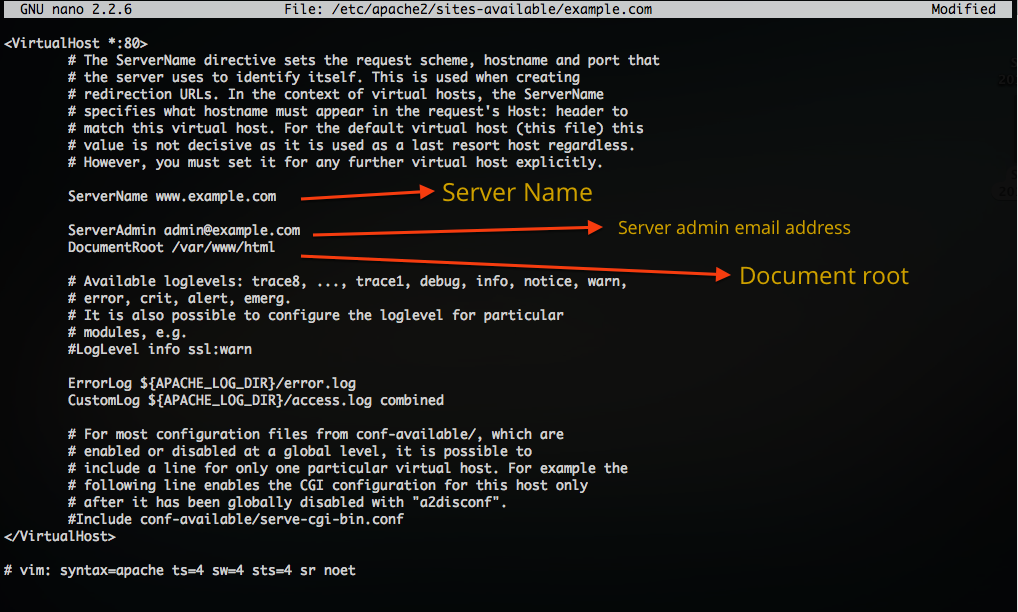
Sample Config :
<VirtualHost *:80>
 # The ServerName directive sets the request scheme, hostname and port that
 # the server uses to identify itself. This is used when creating
 # redirection URLs. In the context of virtual hosts, the ServerName
 # specifies what hostname must appear in the request's Host: header to
 # match this virtual host. For the default virtual host (this file) this
 # value is not decisive as it is used as a last resort host regardless.
 # However, you must set it for any further virtual host explicitly.
 ServerName www.example.com
 ServerAdmin admin@example.com
 DocumentRoot /var/www/html
 # Available loglevels: trace8, ..., trace1, debug, info, notice, warn,
 # error, crit, alert, emerg.
 # It is also possible to configure the loglevel for particular
 # modules, e.g.
 #LogLevel info ssl:warn
 ErrorLog ${APACHE_LOG_DIR}/error.log
 CustomLog ${APACHE_LOG_DIR}/access.log combined
 # For most configuration files from conf-available/, which are
 # enabled or disabled at a global level, it is possible to
 # include a line for only one particular virtual host. For example the
 # following line enables the CGI configuration for this host only
 # after it has been globally disabled with "a2disconf".
 #Include conf-available/serve-cgi-bin.conf
 </VirtualHost>
lets enable and restart apache server to take effect
#Now let's make that site available

sudo ln -s  /etc/apache2/sites-available/example.com  /etc/apache2/sites-enabled/example.com

# or use
sudo a2ensite example.com

# restart apache

sudo service apache2 restart
Now put some html files in /var/www/html and browse to example.com ( setup /etc/hosts for that or use IP address instead )

useful links
http://httpd.apache.org/
https://help.ubuntu.com/14.04/serverguide/httpd.html