In this tutorial, I’ll guide you through the installation of PHP and MySQL on Windows, and additionally how to set up the PHP framework Laravel and Composer with Git. PHP 5.4 and later versions have an inbuilt development server, so in this tutorial I won’t cover all the web server setup—just simple PHP and MySQL with Composer and the inbuilt development web server. Let’s get started.
Note: This tutorial references PHP 5.5, which is very outdated and no longer supported. For modern development, use PHP 8.1 or later. The installation process is similar, but you should download the latest PHP version.
Note: Download the latest PHP 8.x version for modern development. PHP 5.5 is no longer supported.
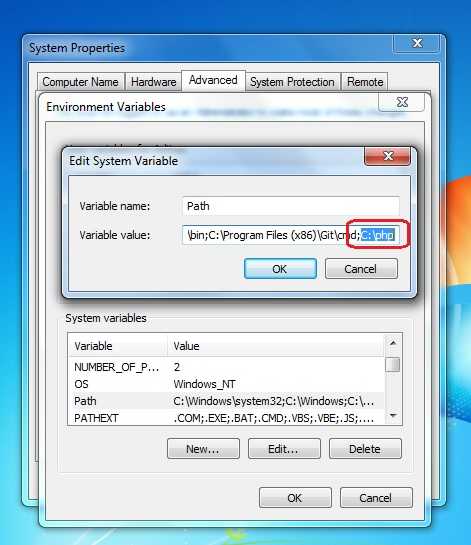
and extract the php file in ** C:\php **or anywhere just remember the location , after extracting the php lets setup windows PATH variable , so we can access php from CMD ( command prompt ) . How to setup Environment Variable in windows : just simply follow the steps
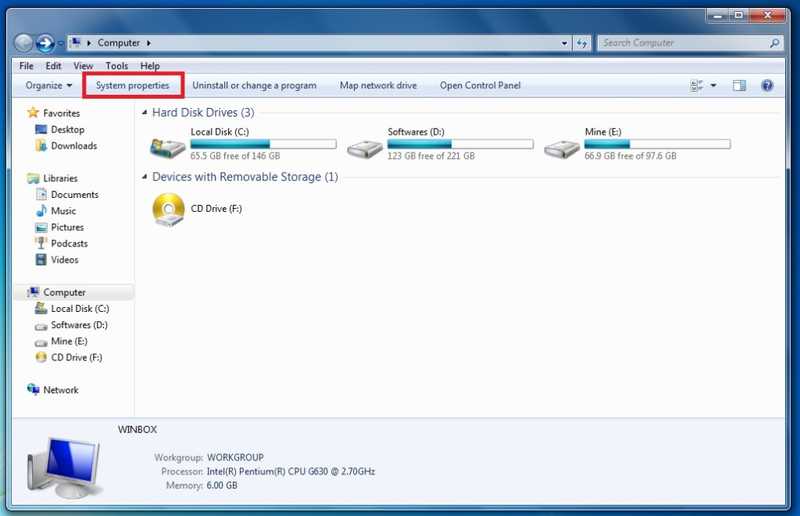
open My Computer and click on propertiesproperties
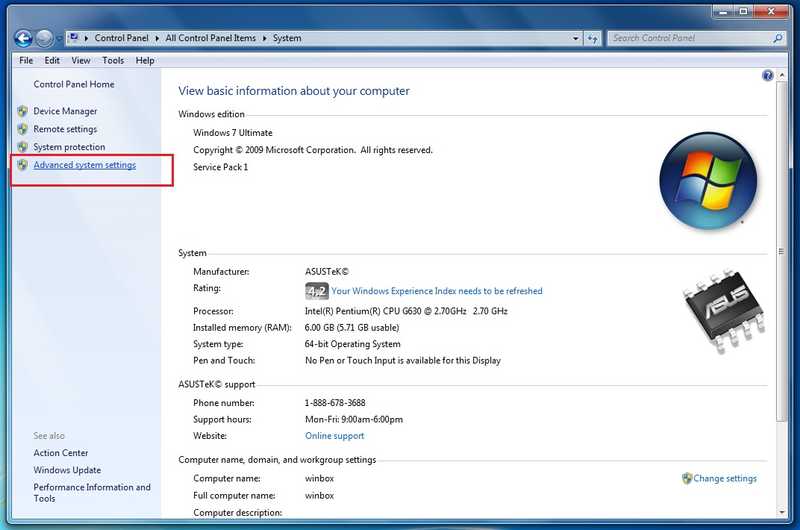
click on advance system settingsadvance
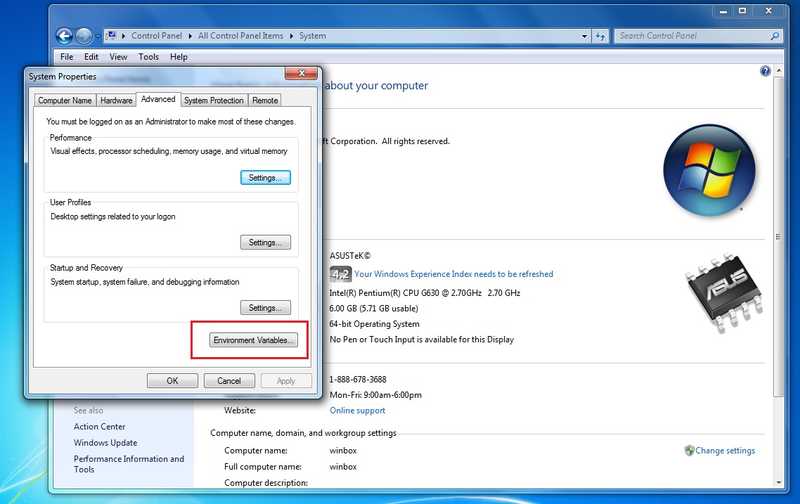
Click on the Environment Variables From System Properties windowWindows system environment variables
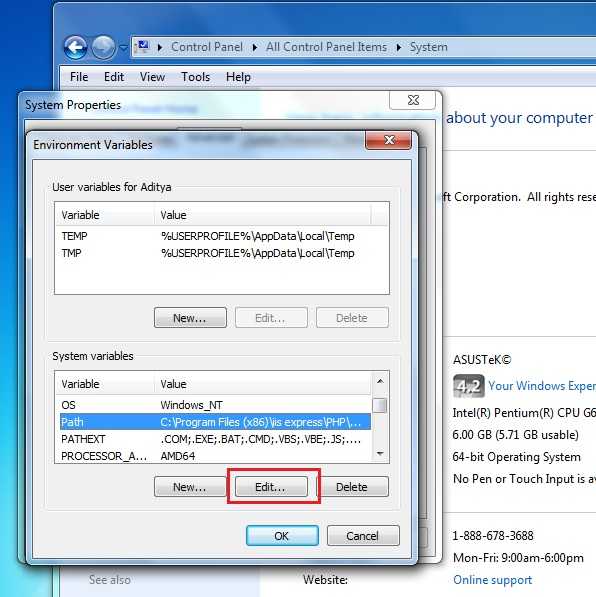
Choose System variables and select PATH and click editedit
Add ” ; ” ( without quotes ) and add php locationdone
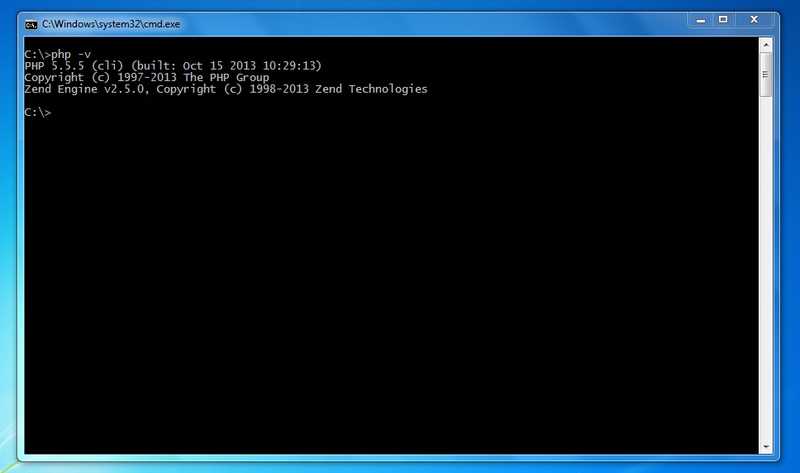
Click OK and OK again and Press_ Windows + R_ and type_ CMD_ and type php -vphp windows cmdif you are getting that kind of output , Congrats now php is installed and accessible from CMD
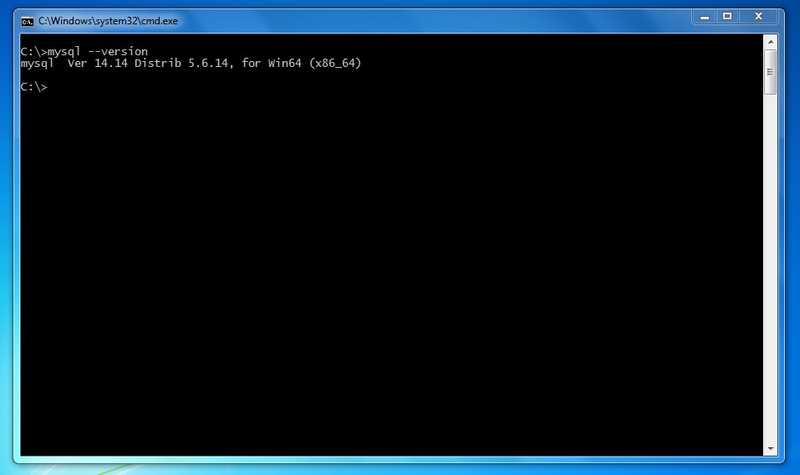
MySQL comes with windows installer but i will show you how to install using zip package . Download and extract zip in C:\MySQL and setup environment variable exactly like how we did setup for PHP .
Note: The documentation link has been updated to MySQL 8.0. The process is similar for all versions.
MySQL Service in windows
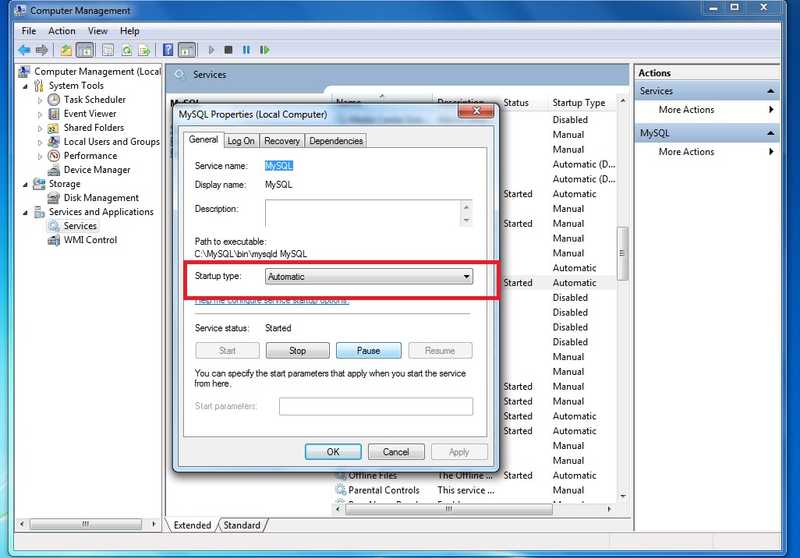
if you want to start mysql when you log on then install mysql service and select automatic start ,
click on start >>all programs >> accessories > then right click and open Command prompt as admin
cd  c:\mysql\bin
C:\MySQL\bin>mysqld --install
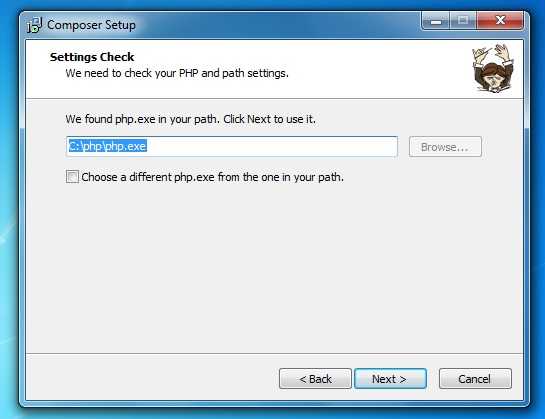
and now open service manager and find MySQL service then click on properties set automatic start Mysql Service Now PHP and MySQL are installed. Let's install Composer. Download the Windows installer and install it like another Windows package. Just choose the correct PHP location when installing.
Composer on windows open CMD and type ” composer –version ” and make sure it print version otherwise troubleshoot your installation .
Laravel
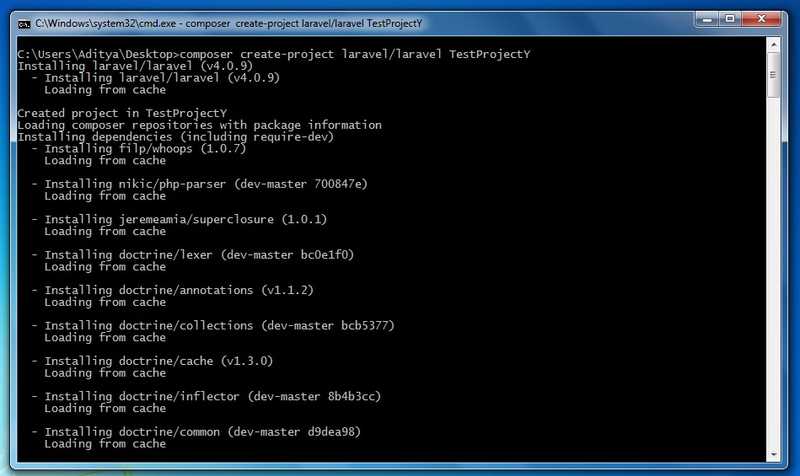
Now let’s set up Laravel. Laravel is a PHP-based MVC framework. If you’re confused, it’s like ASP.NET MVC and Ruby on Rails framework, just written in PHP. Let’s install it. Open CMD and paste:
wait for time it will take some time to install all the dependencies , if you are getting openssl error then simply open php.ini file and fix extension dir path ( see the php folder that we extracted at the time of installation )
extension_dir = C:\php\ext
and change
;extension=php_bz2.dll
//to
extension=php_bz2.dll
then try again , i am sure it gonna work . now wait until it finish setting up dependencies .
laravel project
after that lets start development server . open CMD cd to project root and laravel comes with a tool calle artisan
lets fire up dev server using artisan
php artisan serve
then open browser and open http://localhost:8000 , and you will see default laravel page .