Virtual-box 4.3 released with video capturing and touch support
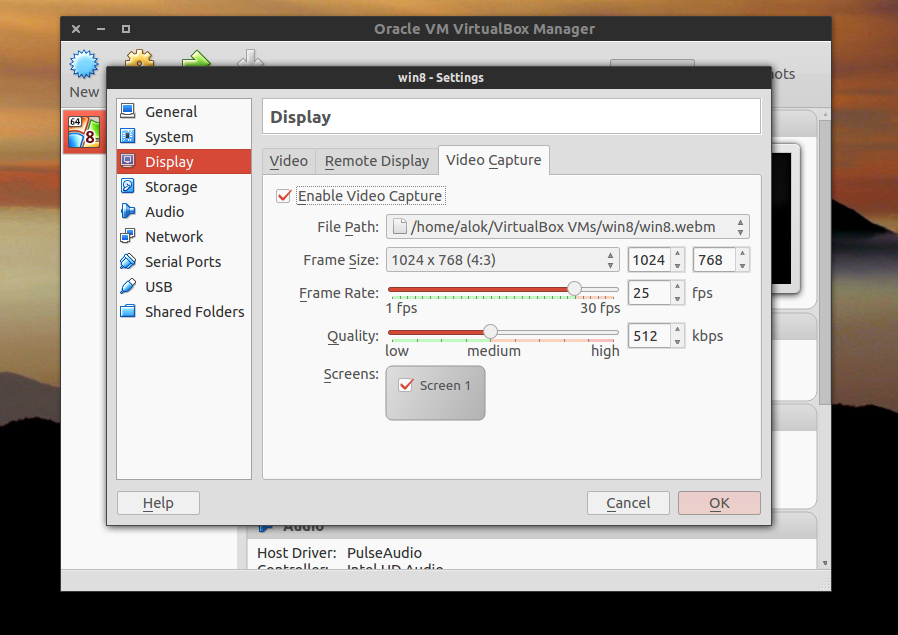
The popular open-source virtualization platform VirtualBox development team released VirtualBox 4.3 with major features including video capturing and support for touch-enabled operating systems (like Windows 8.1). Now if you want to capture a VM session, you can record the video directly in VirtualBox without any third-party apps.
Note: VirtualBox 4.3 is a very old version (released in 2013). The current version is much newer (7.x series). This post is kept for historical reference. For current installation instructions, visit virtualbox.org.
major changes
- VMM: major rewrite of the VT-x code and the AMD-V code including many bug fixes and performance improvements
- VMM: introduced a lightweight instruction interpreter for situations not handled by hardware virtualization
- GUI: extended messaging mechanism (new non-modal popup overlays used to show non-critical warnings and provide user with additional information)
- GUI: keyboard shortcuts management (input page of global preferences extended with possibility to edit general keyboard shortcuts for VirtualBox Manager and Virtual Machine)
- GUI: video capturing support
- Added USB touch device emulation
- Added experimental support for webcam passthrough complementing USB passthrough (see the manual for more information)
- Added SCSI CD-ROM emulation, including boot support
- VRDP: support for IPv6
- Guest Control: guest sessions now are running in dedicated, impersonated session processes (needs at least Guest Additions 4.3 installed)
- Guest Control: implemented IGuestFile support
- NAT: experimental virtual router mode: several VMs are attached to the same internal network and share one NAT service (see the manual for more information)
See full changelog: https://www.virtualbox.org/wiki/Changelog
Download
Download VirtualBox: https://www.virtualbox.org/wiki/Downloads
Note: The installation instructions below are for VirtualBox 4.3 (Ubuntu 13.04 “Raring”). For modern Ubuntu versions, use the official VirtualBox repository or install from the Ubuntu repositories.
For Ubuntu, open:
/etc/apt/sources.list
Or create a new virtualbox.list file under /etc/apt/sources.list.d/ and open it in a text editor:
sudo nano /etc/apt/sources.list.d/virtualbox.listAnd add (for Ubuntu 13.04 “Raring”):
deb https://download.virtualbox.org/virtualbox/debian raring contrib
Note: Replace “raring” with your Ubuntu codename (e.g., “jammy” for Ubuntu 22.04, “focal” for Ubuntu 20.04).
Then open terminal:
wget -q https://www.virtualbox.org/download/oracle_vbox_2016.asc -O- | sudo apt-key add -
sudo apt-get update
sudo apt-get install virtualbox-4.3
Note: The GPG key import method has changed. For modern installations, use the official VirtualBox repository setup instructions.
After installing VirtualBox, install the extension pack to get most features. It provides support for USB 2.0, VirtualBox RDP, and PXE boot for Intel cards.
[polldaddy poll=7481886]