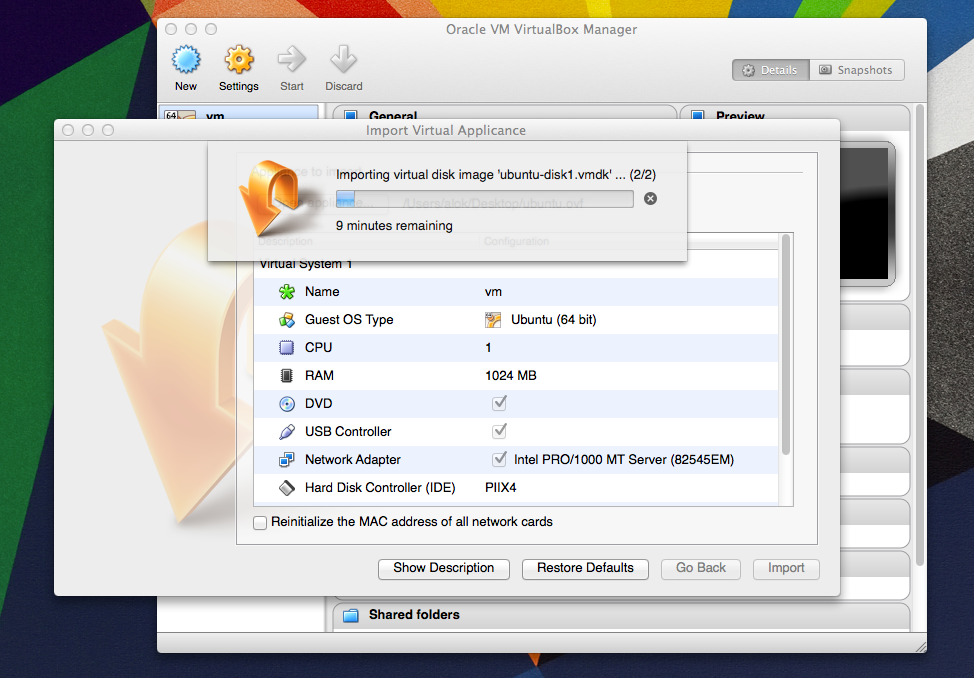
Most of the time I prefer using VMware Workstation. The good thing about VMware virtual machines is they work perfectly in VMware products for any platform. However, when I started using VirtualBox, I tried to import a VMware virtual machine directly, which is not possible.
The OVF tool comes in very handy—it exports virtual machines from VMware VMs to OVF (Open Virtualization Format), which can then be imported into VirtualBox.
If you want to export virtual machines from VMware Workstation, it’s really easy:
Select the virtual machine and select File > Export to OVF.
Type a name for the OVF file and specify a directory in which to save it.
Click Save to start the OVF export process.
The export process can take several minutes. A status bar indicates the progress of the export process.
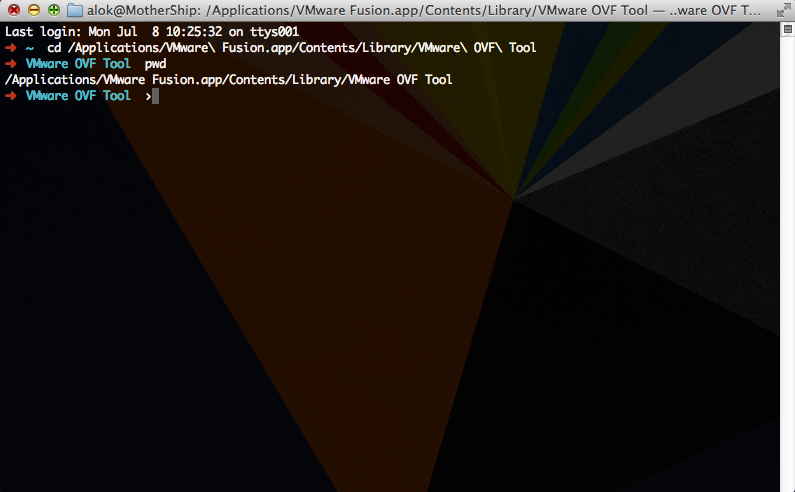
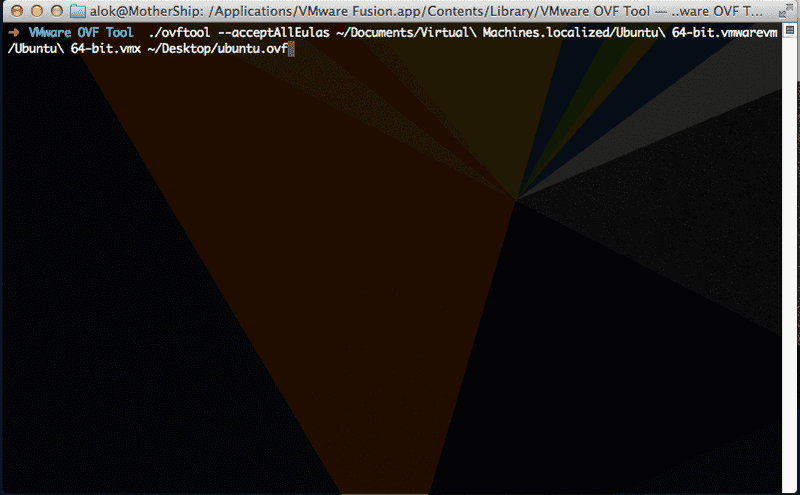
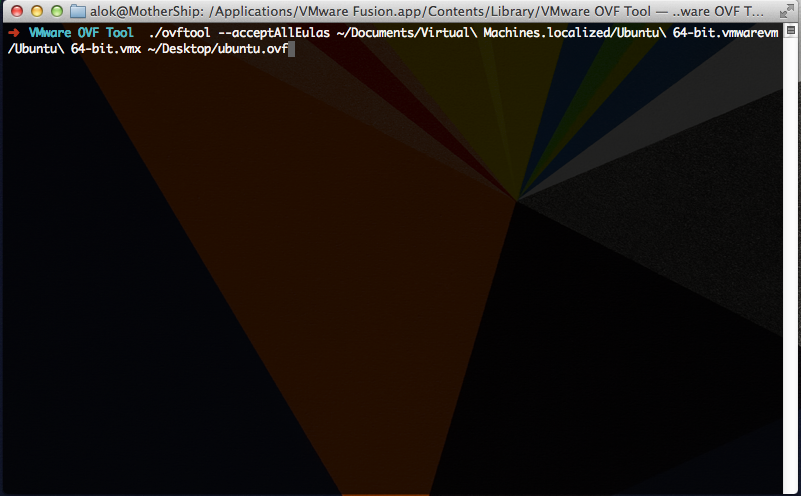
If you are using VMware Fusion, you can use the OVF tool to export virtual machines.
The OVF tool comes bundled with VMware Fusion, so you don’t have to do anything extra.